Start with a take that is comfortable to record
An expert video often begins with material you already know: an idea, an example and a next step for the viewer. TAKT helps you deliver those words to camera in a clear order. Move the teleprompter beside the lens, enlarge the text and set the pace. You work on the reading position while making the original recording.
In the same studio, you can add slides, choose a circular camera layout and identify the video with a custom text watermark. When a continuous take meets your needs, the download completes the recording step. You do not need to create an editing project just to read a prepared explanation.
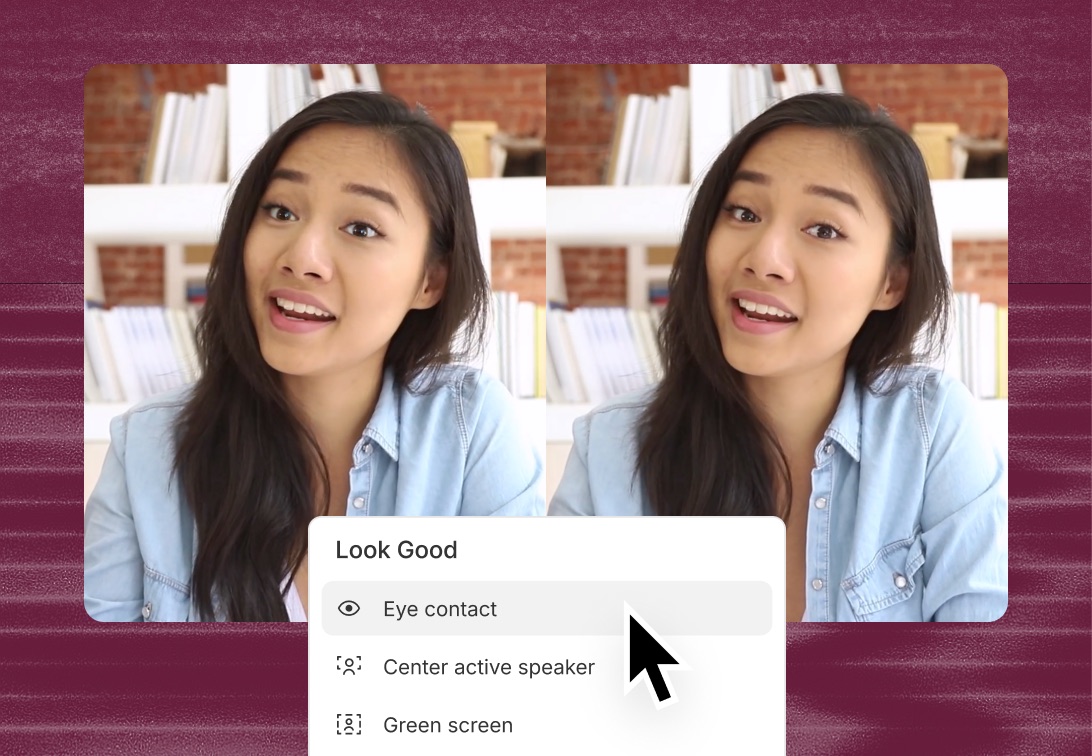
Descript supports later editing and effects including Eye Contact. TAKT does not process your face: its advantage is direct control of the script and composition before export. Start free in TAKT, then add editing when your footage calls for it.
Compare the stages of work
| Stage | Takt | Descript |
|---|---|---|
| Read during a take | Adjustable script position and pace | Verify the prompting workflow separately |
| Alter the image of the eyes | No | Eye Contact effect |
| Record camera and screen | Yes | Recording tools available |
| Prepare captions | Script text and reading timing | Transcription and caption tools |
| Edit multiple takes together | Use a separate editor | Editing is part of the product |
| Obtain a recorded take | Local download | Editor import and export workflow |
The table describes purpose, not equivalent export quality, processing time, or access on a free plan. Check Descript’s media and AI allowances on its pricing page. A product may be appropriate for your task while still requiring a different subscription from the one shown in a promotional example.
Improve your eyeline before filming
Start with the physical camera position. A low laptop and a script at the bottom of its screen encourage a downward gaze. Put the device on a stable support and bring the prompter near the lens. Change one variable at a time: position, then font, then pace. Otherwise, it is difficult to tell which adjustment helped.
Record one sentence that addresses the viewer and one explanatory paragraph. Watch without sound: are the movements between the ends of a line noticeable? Then listen: did the pauses and conversational delivery survive? A position only works if you can read without stretching your neck, squinting, or abruptly slowing down at every line break.
Takt does not promise to eliminate visible reading. A large monitor, a close seating position, and long lines can still produce eye movement. For an important presentation, compare two script positions using the same words. Shortening a sentence sometimes does more for delivery than another interface adjustment. Treat the recording as feedback about both the text and the setup.
A two-minute expert video workflow
Suppose an expert explains a common mistake, demonstrates an example, and gives the viewer a next step. In Takt, prepare three blocks and record a few short takes. During capture, aim for a clear explanation and a usable source file. Do not automatically enable every decoration: test captions and a watermark in a short sample first.
If you then need to remove a repeated passage, rearrange a clip, or process the gaze, use an editor. Before the main take, check that it accepts the downloaded container. Takt currently selects a recording format supported by the browser; renaming the file extension is not conversion. For substantial later editing, consider preserving a clean recording without permanently burned-in captions.
Choose around your next recording
TAKT helps position text beside the lens; it does not digitally correct eyes or replace multi-clip editing. Use an editor for those tasks. You can capture the source in TAKT and continue in post-production after checking format compatibility. Descript Eye Contact
Start with one useful take
Write the answer to one question your audience asks. Keep the first version to an opening, a worked example and a next action. Put each thought in its own block in TAKT, then read it aloud with the camera preview visible. Shorten any sentence that takes more effort to say than to understand.
Now share the material you want the viewer to see. For slides, use a separate window and check that the circular camera does not cover an important number. Set the text near the lens and choose a pace that leaves room to breathe. Record, pause if you need to prepare the next step, and continue. Download the completed take and open it in your usual publishing workflow.
The useful comparison is whether that complete sequence meets your needs. TAKT gives you a free way to try it now, with no account or payment card required for the studio.
Frequently asked questions
Can I try TAKT for free?
Yes. The public web beta lets you read a script, record and download without registering or entering a payment card.
Can I record both my face and slides?
Yes. Share a window or tab, select Me + screen and choose a circular or another available camera layout.
Why choose TAKT for a prepared video?
Your script, reading controls and camera-and-screen composition are in the same browser studio. If your main task is delivering a clear lesson or demo to a publishing destination you already use, start there.
Your next take starts here
Open the free studio, paste your script and record your camera with your slides. No installation, account or payment card needed.
Try for free